
Bifrost
My Experience With Bifrost

Bifrost is an OpenStack project that provides a set of Ansible playbooks and tools for deploying and managing bare-metal servers using the Ironic service. It is designed to automate the provisioning of physical machines without the need for a full OpenStack environment. For this task, I explored, installed, and tested Bifrost on Ubuntu 24.04 LTS (Noble) using its virtual machine test environment.
Installation Process
The steps for installation can be found in the Bifrost documentation.
Bifrost is currently fully supported (tested with no known issues) for specific operating systems (CentOS Stream 10, Ubuntu 22.04 ‘Jammy’, 24.04 “Noble”, and Debian 12 “Bookworm”).
These are the steps I followed after confirming that my OS and Python 3.6 or newer was among those above with the commands:
lsb_release -a and python3 —version


Step I: Install Dependencies
Since I had determined the need for a virtual environment, I also installed relevant dependencies like libvirt virtualization and networking tools.
Using the commands:
sudo apt update
sudo apt install -y git phython3 python3-venv python3-pip ansible make libvirt-daemon-system libvirt-clients qemu-kvm virt-manager bridge-utils
Step 2: Clone Bifrost
Using the command:
git clone https://opendev.org/openstack/bifrost
And then navigate to the Bifrost directory
cd bifrost
Switch to the most recent stable branch:
git checkout stable/2025.1

There are two installation options:
./bifrost-cli install: When planning to manage real physical hardware directly.
./bifrost-cli install —testenv: Creates a virtual machine setup that is best for learning and testing.
I chose the test environment option.
Step 3: Create and activate a virtual environment
Using the commands:
python3 -m venv env
source env/bin/activate
pip install —upgrade pip
pip install -r requirements.txt

Step 4: Set up the test environment (VM-based)
Run the command:
./bifrost-cli testenv

Step 5: Install Bifrost in test mode
Run the command:
./bifrost-cli install --testenv

Step 6: Use Bifrost
Activate the environment and interact with ironic:
source ~/bifrost/env/bin/activate
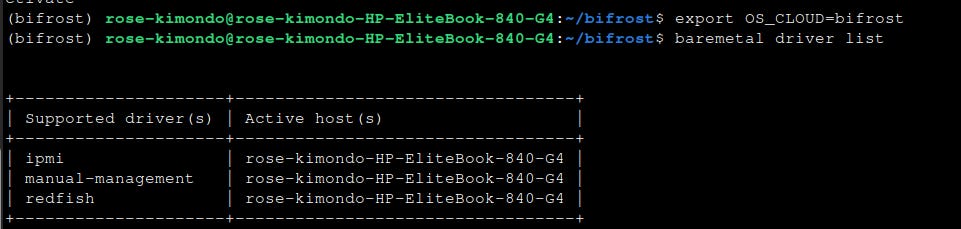
Define the cloud configuration to be used:
export OS_CLOUD=bifrost
Confirm that Ironic is running and reachable by checking available drivers for provisioning machines:
baremetal driver list
Step 7: Confirm, once again, whether Ironic is running
sudo systemctl list-units | grep ironic

Now you have Ironic installed and running on your virtual machine!!!